01 · EXPLORE
Learn before configuring.
Browse strategy explanations and distinguish modeled learning outcomes from confirmed Paper results.
 OSCR Paper Only
OSCR brings account access, strategy research, bot configuration and protective monitoring into one workspace.
First time here? Start on a Mac or Windows desktop or laptop. A larger screen makes Alpaca account setup and your first OSCR connection easier.
OPERATIONAL STRATEGY, CONTROL & RISK
01 · EXPLORE
Browse strategy explanations and distinguish modeled learning outcomes from confirmed Paper results.
02 · CONFIGURE
Save an asset, timeframe, strategy, exit plan, risk ceiling and schedule in a user-owned draft.
03 · CONNECT
Account connection is separate from bot activation. The operator’s broker account is never a substitute for a student’s account.
YOUR FIRST RUN · DESKTOP RECOMMENDED
Use a desktop or laptop for your first sign-in, Alpaca setup and Paper account connection. OSCR opens in your web browser; these steps do not require a separate OSCR desktop app.
Submit the form below. Your receipt confirms the request; after approval, your invitation contains your private access link and device setup instructions.
Install ZeroTier One for macOS or Windows. Join the network named in your invitation, then reply to the invitation with your computer’s device name and ZeroTier Node ID. Wait for device authorization and keep ZeroTier connected while using OSCR.
Open ZeroTier from the menu bar. Follow your invitation’s Mac certificate instructions in Keychain Access, using only the OSCR certificate supplied with your approved invitation.
Open ZeroTier from the system tray. Follow your invitation’s Windows certificate instructions to install the supplied OSCR certificate for your user account.
Once your device is authorized and certificate setup is complete, open the private sign-in link from your invitation. Set your password with the invitation’s single-use activation link, sign in, and bookmark OSCR. If you see a certificate warning, contact the pilot operator for help.
In OSCR, open Account. Use Create Alpaca Account or I Already Have an Account to open Alpaca, select Paper Trading, and follow OSCR’s Paper API-key connection instructions. Enter your own Paper keys directly into OSCR; do not email passwords, keys or secrets. Account connection and bot trading authorization are separate steps.
After desktop setup, you can add a phone or another computer using the invitation’s device instructions. Each device requires its own authorization. Real-money trading remains off.
Approved participants can connect their own Alpaca Paper accounts, configure bots and view market scanning, account activity, positions, performance and alerts. Learning simulations and strategy research are also available.
Connecting an account and scanning the market do not authorize orders. Paper execution requires separate authorization; broader automated deployment remains in preparation. Direct Alpaca OAuth connection is awaiting resolution of a technical issue.
No real-money trading is enabled. Paper and modeled outcomes do not predict future performance.
This public introduction and access request page does not collect broker credentials. Approved participants receive setup instructions for the private pilot. A simpler public sign-in path is being prepared.
INSIDE OSCR
Follow the chart, monitor an open position, and review a closed trade.
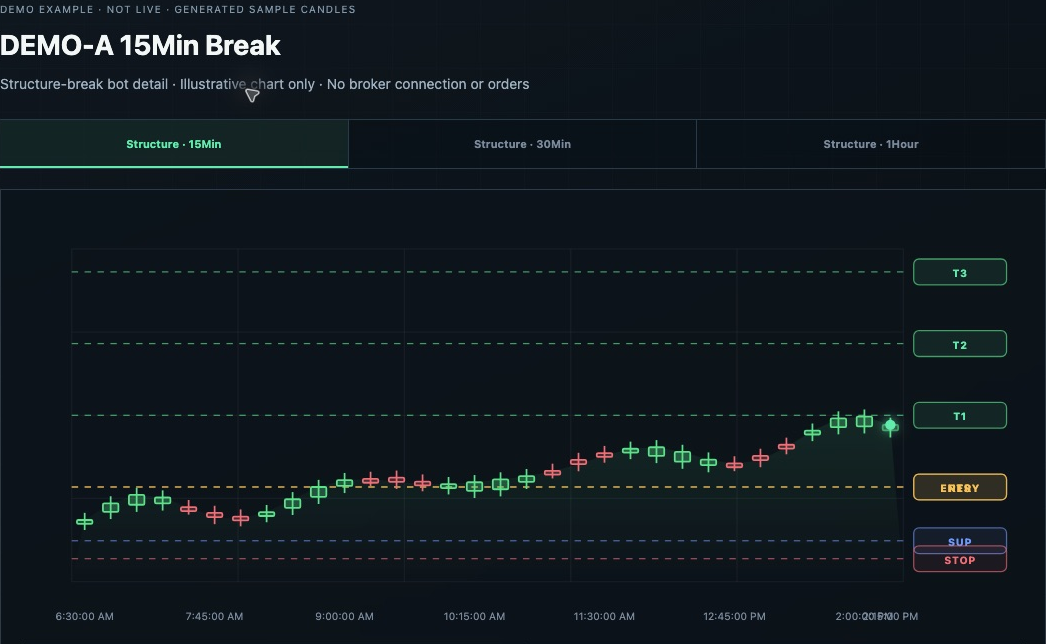
Structure, entry and protective levels in one view.
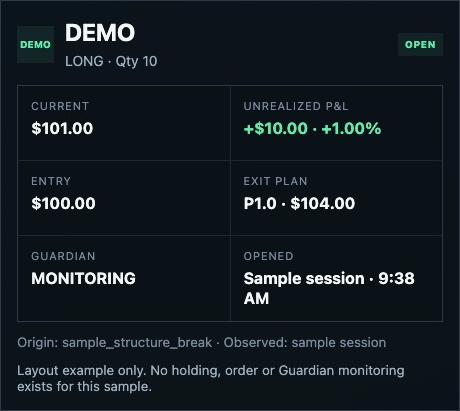
Position details and protection status at a glance.
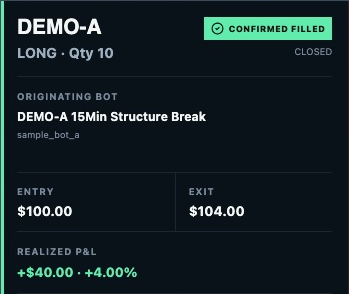
Review the entry, exit and originating bot.
Illustrative Paper examples shown. These screenshots are not live positions or broker records.
YOUR OSCR JOURNEY STARTS HERE
A workspace for learning, strategy research, and your own Paper bots.
Tell us where to send your next steps.
Your request is recorded for review. A receipt email confirms submission; your invitation follows after approval.
After review, your invitation lets you activate your account.
Start on your Mac or Windows desktop or laptop. Sign in, connect your own Alpaca Paper account, and set up your bots. See desktop setup steps →
Practice account connection, bot scanning, and authorized Paper execution are separate steps.
A LITTLE PERSONALITY. A LOT OF PROCESS.
Meet the faces of OSCR. Different personalities. One shared love of a good setup.
ONE EYEBROW. MANY QUESTIONS.
“Interesting. Show me the structure.”
Curious by design. The Scout represents market observation: watching price, checking levels, and keeping you informed.

CALM FACE. CLEAR PLAN.
“Let’s get the details right.”
Methodical and steady. The Planner represents your bot workspace: asset, timeframe, strategy, exit plan, risk ceiling and schedule.

QUICK TO NOTICE. READY TO LEARN.
“Did you see that move?”
Always alert to something new. The Spark represents discovery and research, where you explore ideas before putting them into practice.
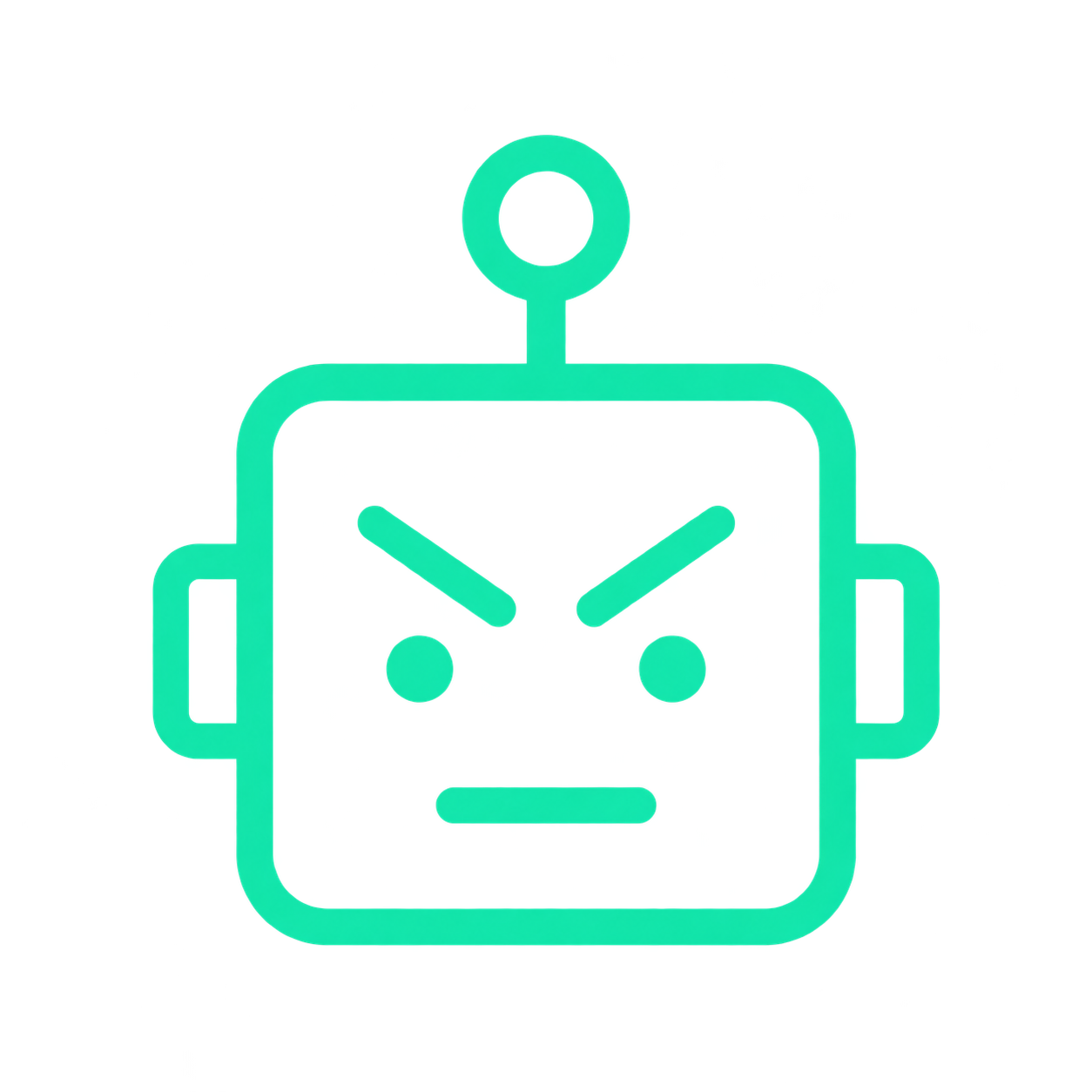
A LITTLE GROUCHY. FOR GOOD REASON.
“Nice idea. Where’s the protection?”
The skeptical one on your side. The Guardian represents protective monitoring and risk checks for managed Paper positions.
Characters introduce OSCR’s features; they don’t activate trading. Your bot configuration and account permissions determine what runs.
Find your bot personality. Request access →A LITTLE HELP WITH YOUR NEXT STEP